User Management

The right people see the right things. Organize your team, control access, and communicate with everyone at your barn, from trainers and staff to clients and their families.

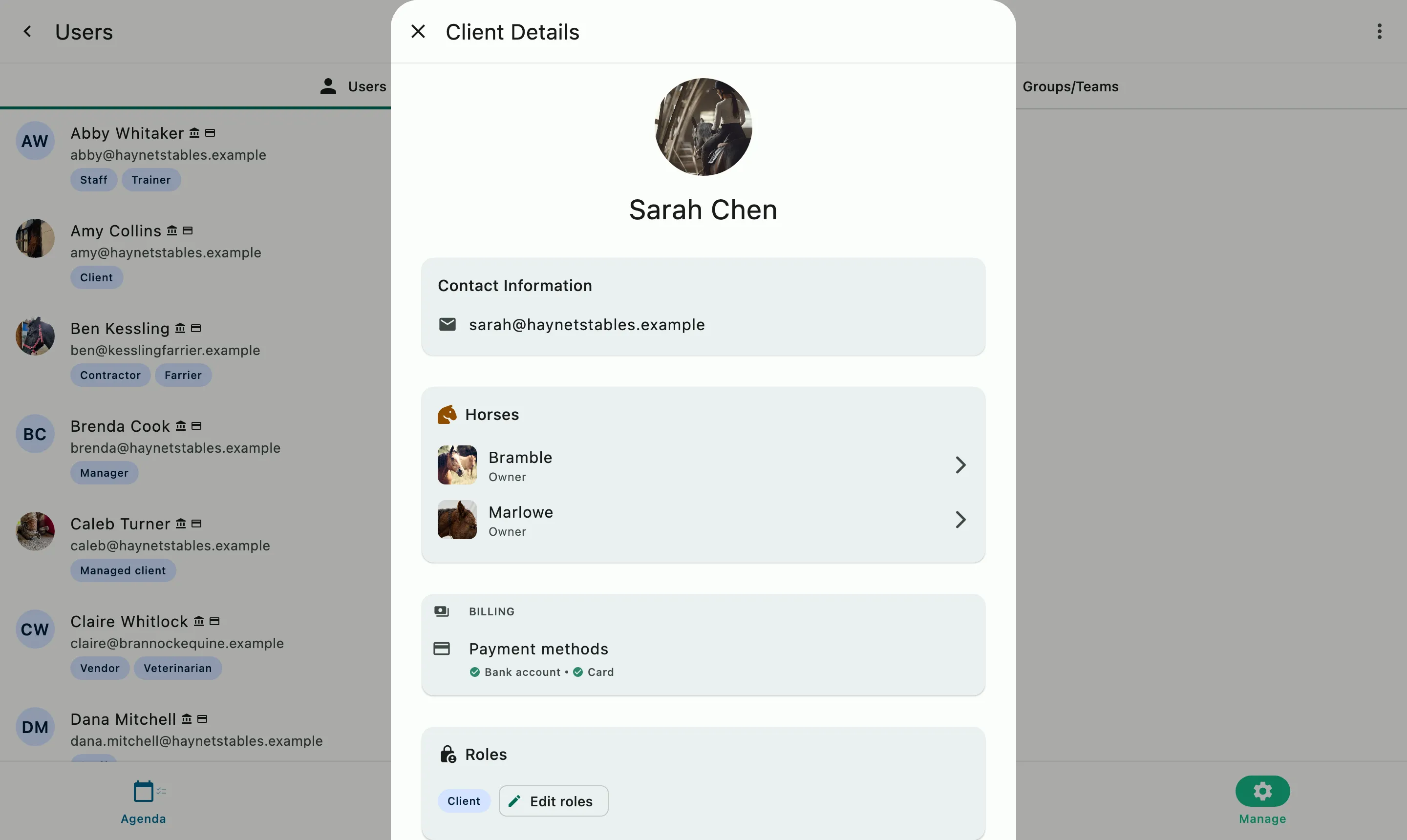
A client's details opened from the user list: contact information, horses, payment methods on file, and role

How it works

Everyone in, with the right access

HayNet's User Management gives you the tools to organize every person connected to your barn, set the appropriate level of access for each role, and communicate with the right groups quickly. From onboarding new clients to managing family accounts to sending a quick message to your entire show team or all of your boarders, everything is built to reflect the way equestrian businesses actually operate, where relationships are personal but the logistics need to be professional.

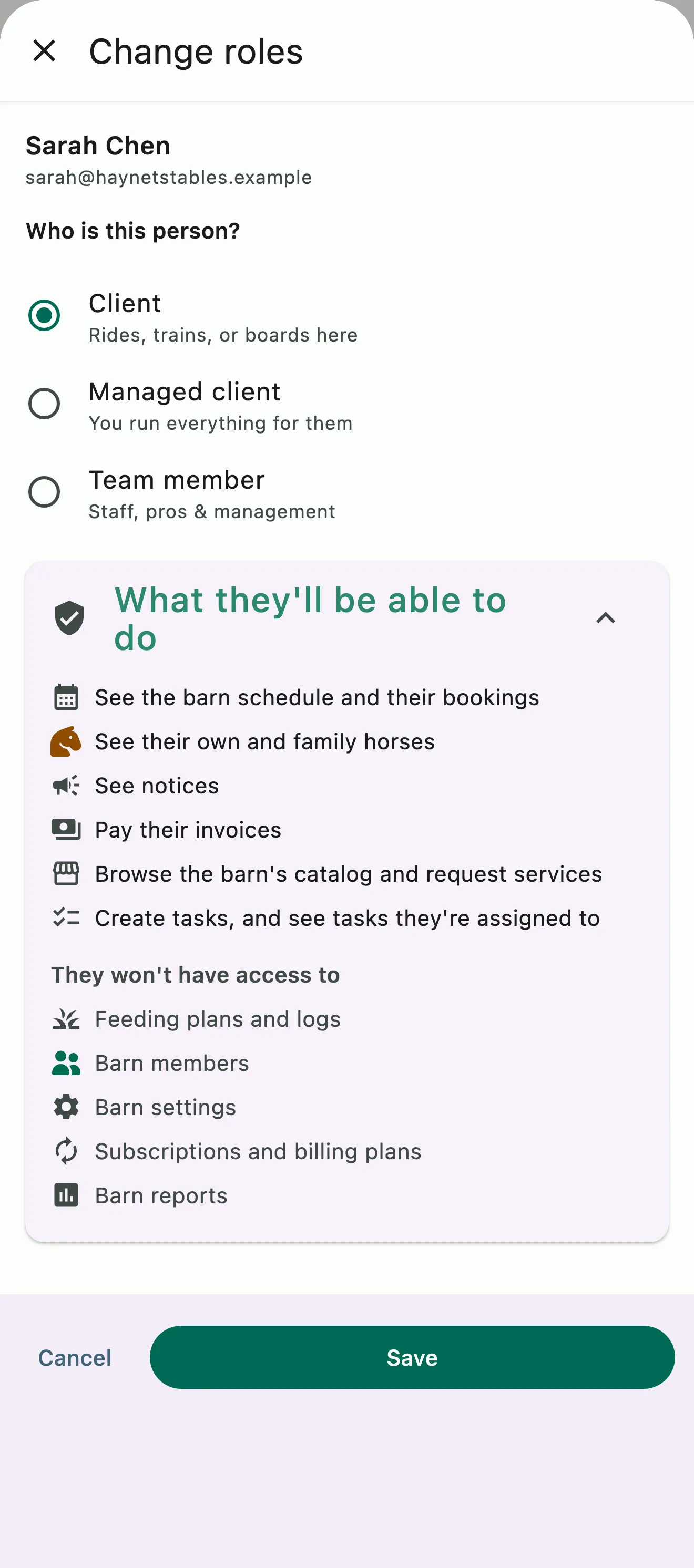
Choosing a member's role, with what it lets them do and what it keeps them out of

Role-Based Permissions

Role based permissions that match the job

Roles like Groom ensure that barn staff see what they need, like which horses to tack and when, without being exposed to billing data or client financials. The Bookkeeper role provides access to financial reports and reconciliation tools along with receiving any configurable automated financial reports. A single user can hold multiple roles when their responsibilities overlap, and roles are managed independently for each organization a user belongs to.

  • Admin, Manager, Trainer, Groom, Bookkeeper, and more
  • A single user can hold multiple roles
  • Set a client with user level access to the app, or a managed client and manage everything for them
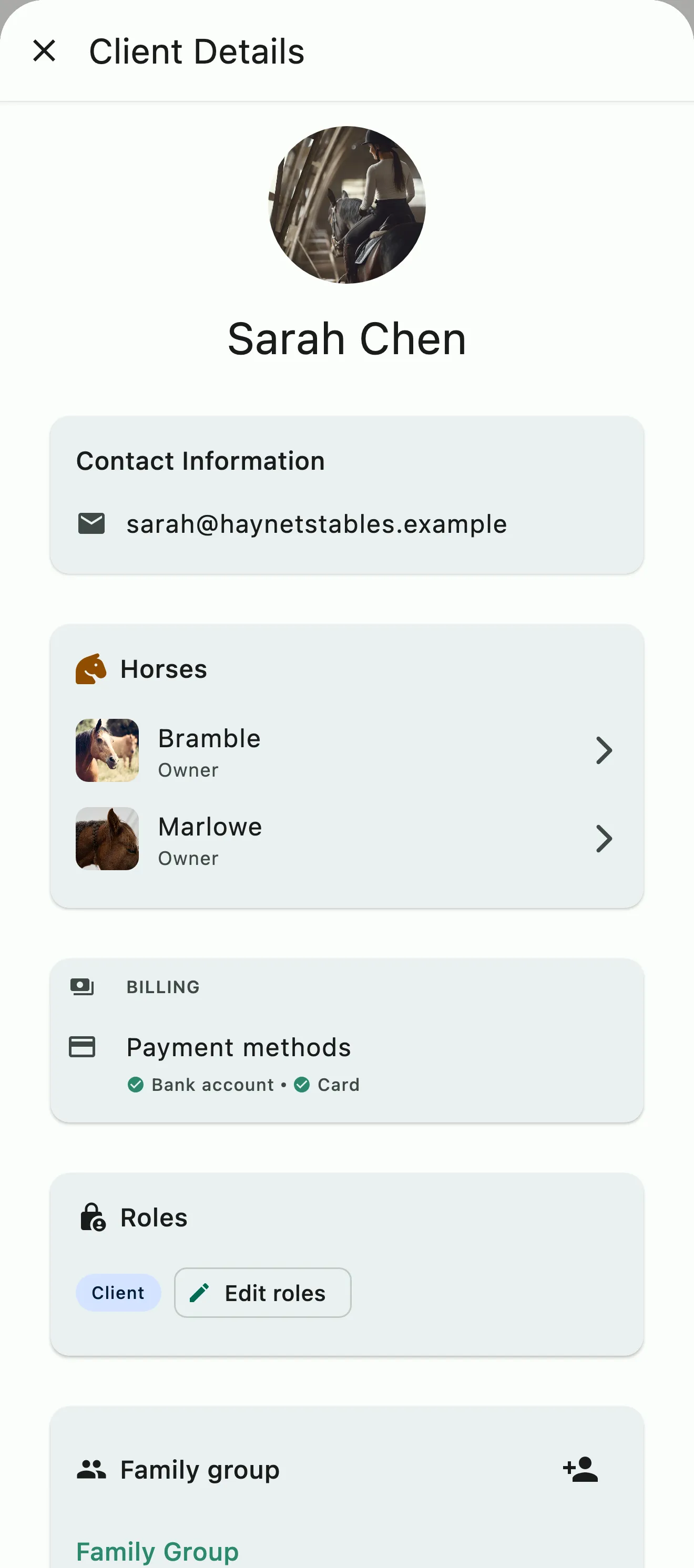
A client profile with contact details, horses, payment methods on file, and role

Client Profiles and Onboarding

A complete picture of every client at a glance

Every client in HayNet has a detailed profile that gives you a complete picture at a glance. Contact information, billing status (including whether they have a bank account or credit card connected), assigned roles, and user notes are all accessible from one screen. User notes keep context on each client in one spot, and only your staff can see them.

  • User notes on every client profile
  • Files for contracts and liability waivers
  • Invite by link, QR code or the invite tool, or let clients request to join
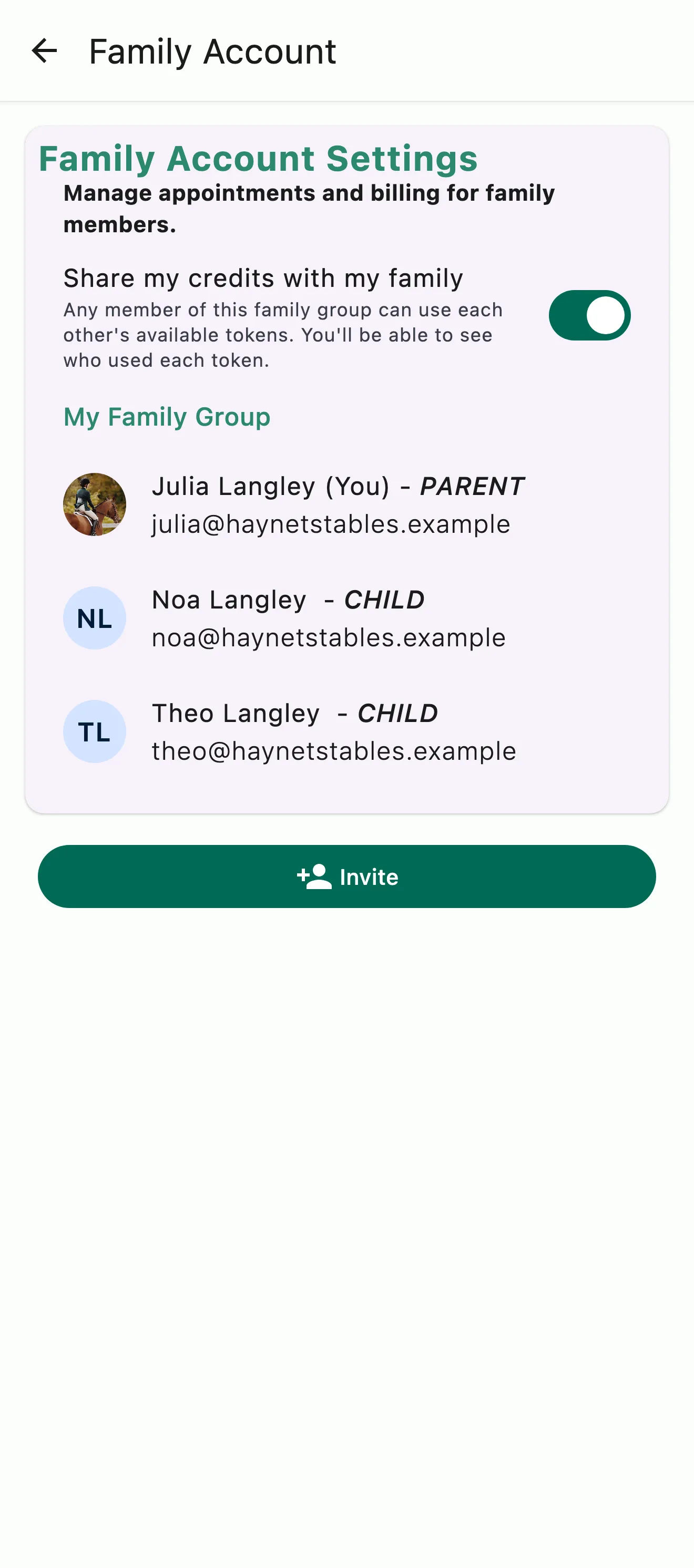
A Family Account with a parent and two children linked, and sharing credits with the family switched on

Family Accounts

Room for the whole family

A significant portion of equestrian clients are junior riders whose parents coordinate their schedules, handle payments, and manage subscriptions. HayNet's Family Account system is built specifically for this dynamic. Parents link their account to their children's accounts and gain the ability to schedule events, view upcoming bookings, manage prepaid package credits, and pay invoices, all from their own login. Children get their own accounts linked to the parent, so their activity, schedule, and records are tracked individually.

  • Parent/Family Manager and Child roles
  • Multiple adults can serve as Family Managers
  • Family Managers see and pay the family's invoices
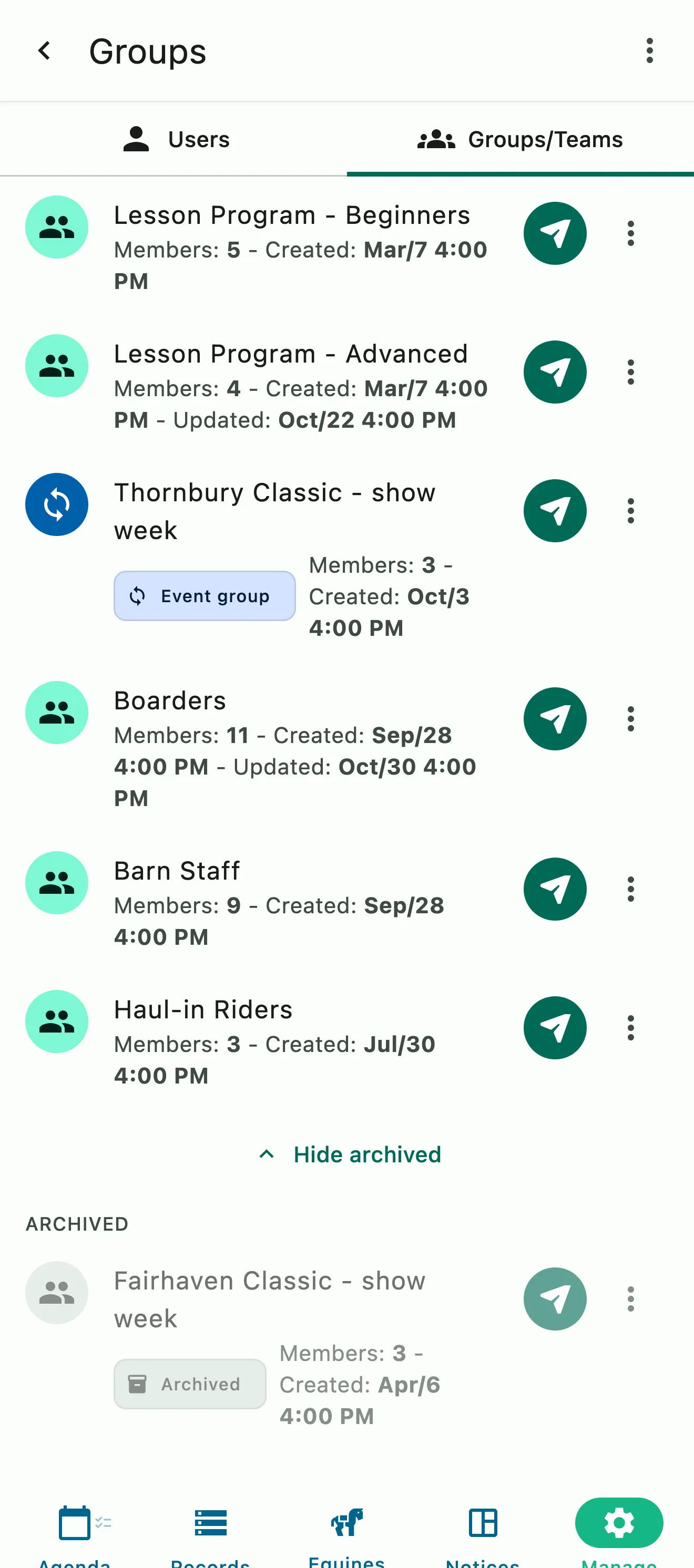
Groups for the lesson programs, boarders, barn staff, haul-in riders, and a show week

Communication Groups and Team Messaging

Message exactly the right subset of your barn

Barns communicate constantly: schedule changes, weather cancellations, show logistics, farrier reminders, event updates. But not every message is for everyone. HayNet's Communication Groups let you create reusable groups of people so you can message exactly the right subset of your barn with just a few taps. Create groups like "Show Team," "Boarders," "Trainers+," or any other grouping that makes sense for how your barn operates.

  • Reusable groups like Show Team and Boarders
  • Email every member of a group from HayNet
  • Add or remove members at any time
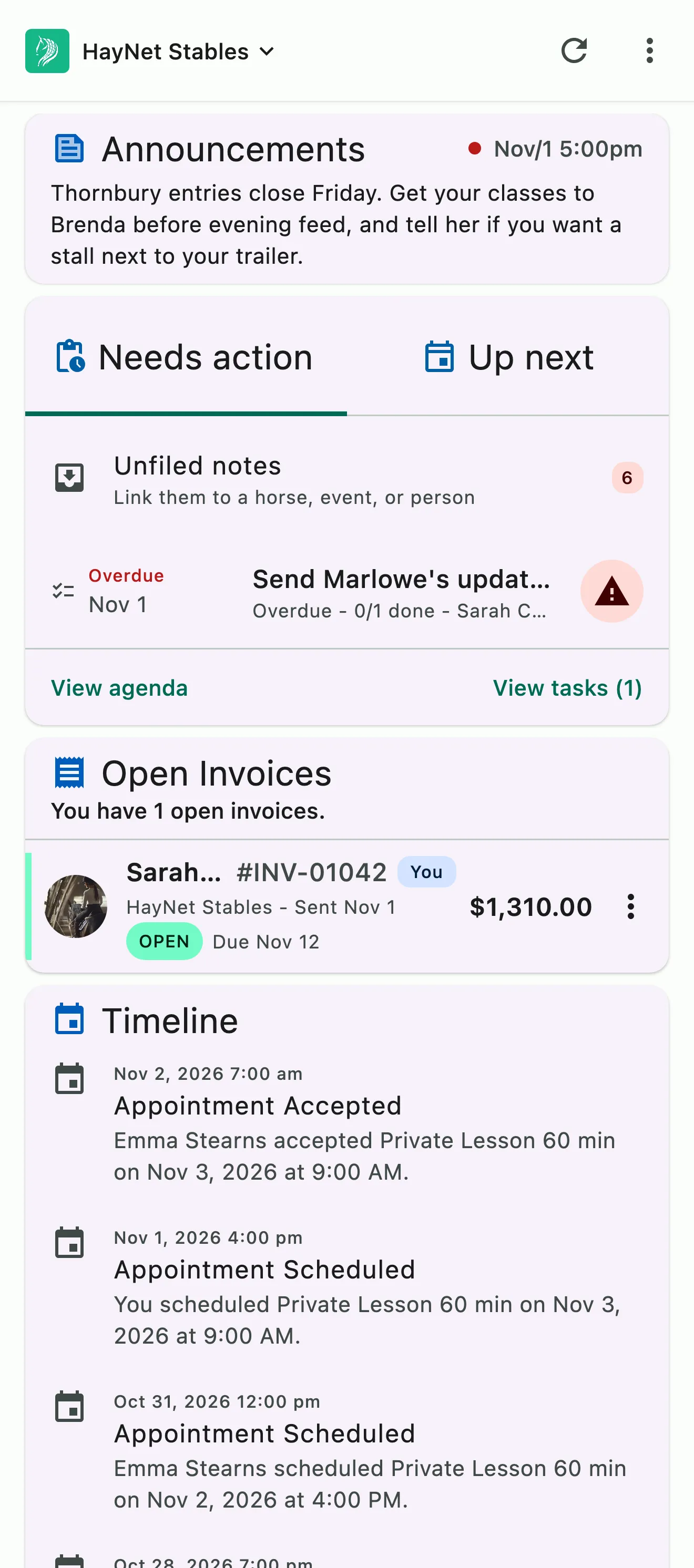
A client's home screen: the barn's announcement, what needs their attention, their open invoice, and their timeline

Client Account Management Portal

Fewer routine questions on your desk

This account management approach reduces the volume of routine questions that land on your desk. When a client wants to know how many lesson credits they have remaining, they check the app. When they need to update their payment method, they do it themselves. When they want to see a breakdown of last month's invoice, it is right there.

  • Payment methods, invoices, subscriptions and package credits in one place
  • Clients browse the Catalog and request board, packages and services
  • Requests wait for your approval
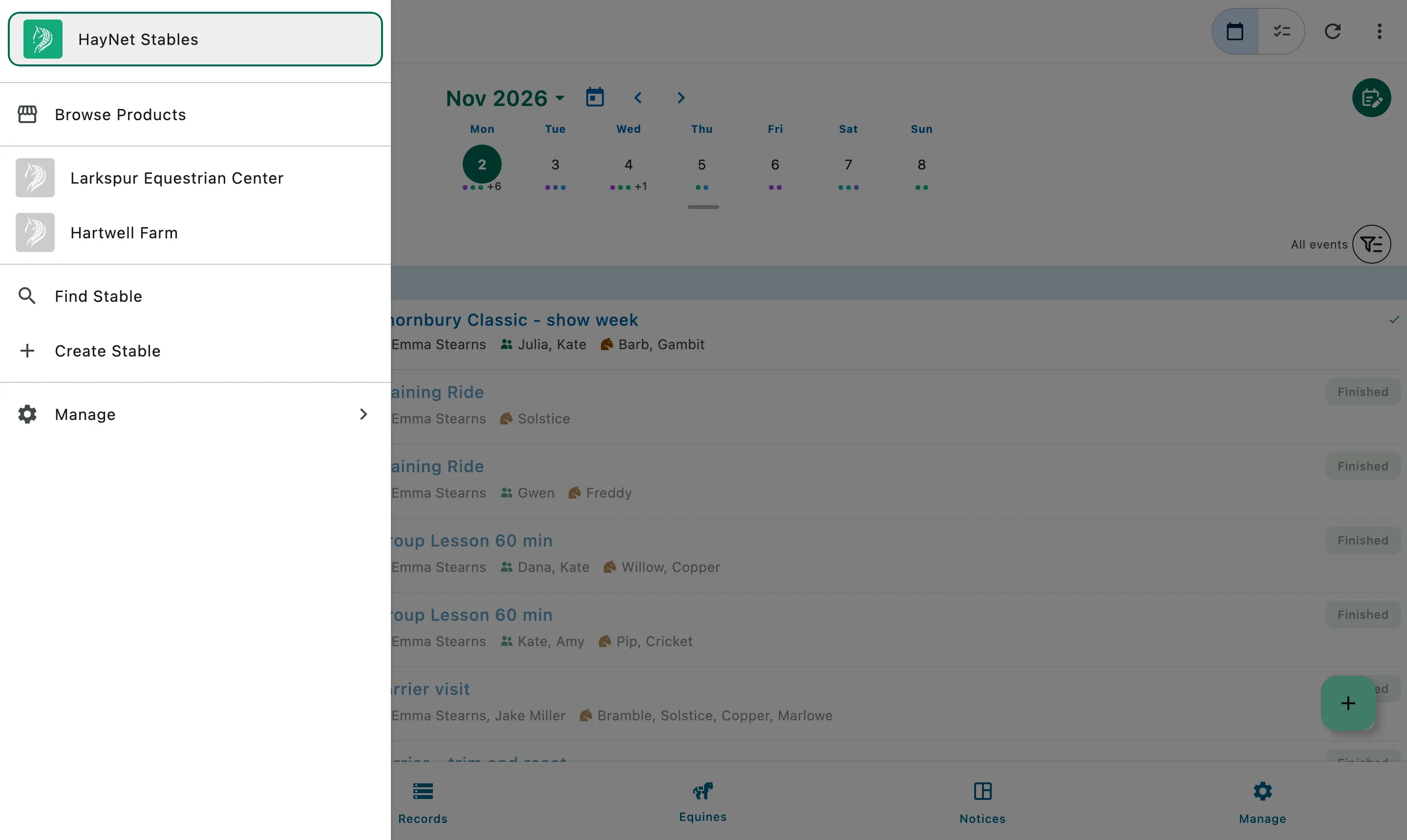
The stable picker open over the agenda: the selected barn at the top, and the two other barns on the same login below it

Multi-Stable Support

One HayNet login works across every organization you belong to

It's not uncommon for someone to be connected to more than one barn, especially in the case of trainers who may teach at multiple facilities, or someone who boards at one barn and teaches at another.

  • Switch between barns with the stable picker
  • No need for multiple accounts and logins

Common questions

About staff and clients

How do I add my clients and staff to my organization?

Go to Manage › Manage Users and tap the add icon to open Add to barn. Choose a client or a team member, pick a team member's roles and enter their email, and HayNet emails them an invite that stays pending until they accept. You can also share your barn's invite link or QR code, which you set up under Manage › General Settings.

Clients can find your barn in the app and ask to join too, when your barn is set to Public in General Settings. Either way, both sides accept before anyone's connected: you accept their request from the Notices tab, or they accept your invite.

I have clients whose children ride and the invoice needs to go to their parent. How can I set that up?

Set up a Family Account. A parent links their account to their child's, and from then on the parent can book for the child and see and pay the child's invoices, with the whole family's charges in one place. Parents set it up from the menu at the top of the screen, under Account & Billing › Family Account.

If the person paying is outside the barn, the client can add a Billing Email in their Profile, and invoices go there instead. Whoever opens the invoice link can pay it without a HayNet account.

I need to send emails to various groups. How do I set up communications groups or teams in the app?

Go to Manage › Manage Users and open the Groups/Teams tab. Tap the plus button, name the group, and select the clients and staff in it, like Tuesday Evening Riders, Show Team or All Boarders.

To reach a group, open it and tap the paper plane to email everyone in it at once, with no list to build each time.

How do I configure app push notifications, SMS/text message, and email notifications?

Each person sets their own: open the menu at the top of the screen and go to Profile › Notification Preferences. A table lets you turn email, SMS and push on or off for new, changed and cancelled appointments, appointment reminders and how far ahead they come, new invoices, and task reminders, assignments and overdue tasks.

Invoice emails always go out, SMS needs a verified phone number, and push needs notifications allowed on your device. Parents can also get an email when a booking is made for a child on their account, and anyone can set a reminder before a subscription renews.

I have multiple organizations. Do I need separate logins?

No. One HayNet account works across every organization you belong to. If you're a trainer at one barn and a client at another, you sign in once and switch between them in the app. Your role is set separately in each organization, so what you can see and do in one doesn't carry over to the other.

See the full FAQ

Give every person the right access, the right information, and the right tools, from day one.

No card required. Available on Apple iOS, Android and Web.